Conversation Routing
Overview
When a customer messages you, ConnectGain picks one team member to own that conversation. Nobody has to claim it, and two agents should never start replying to the same person.
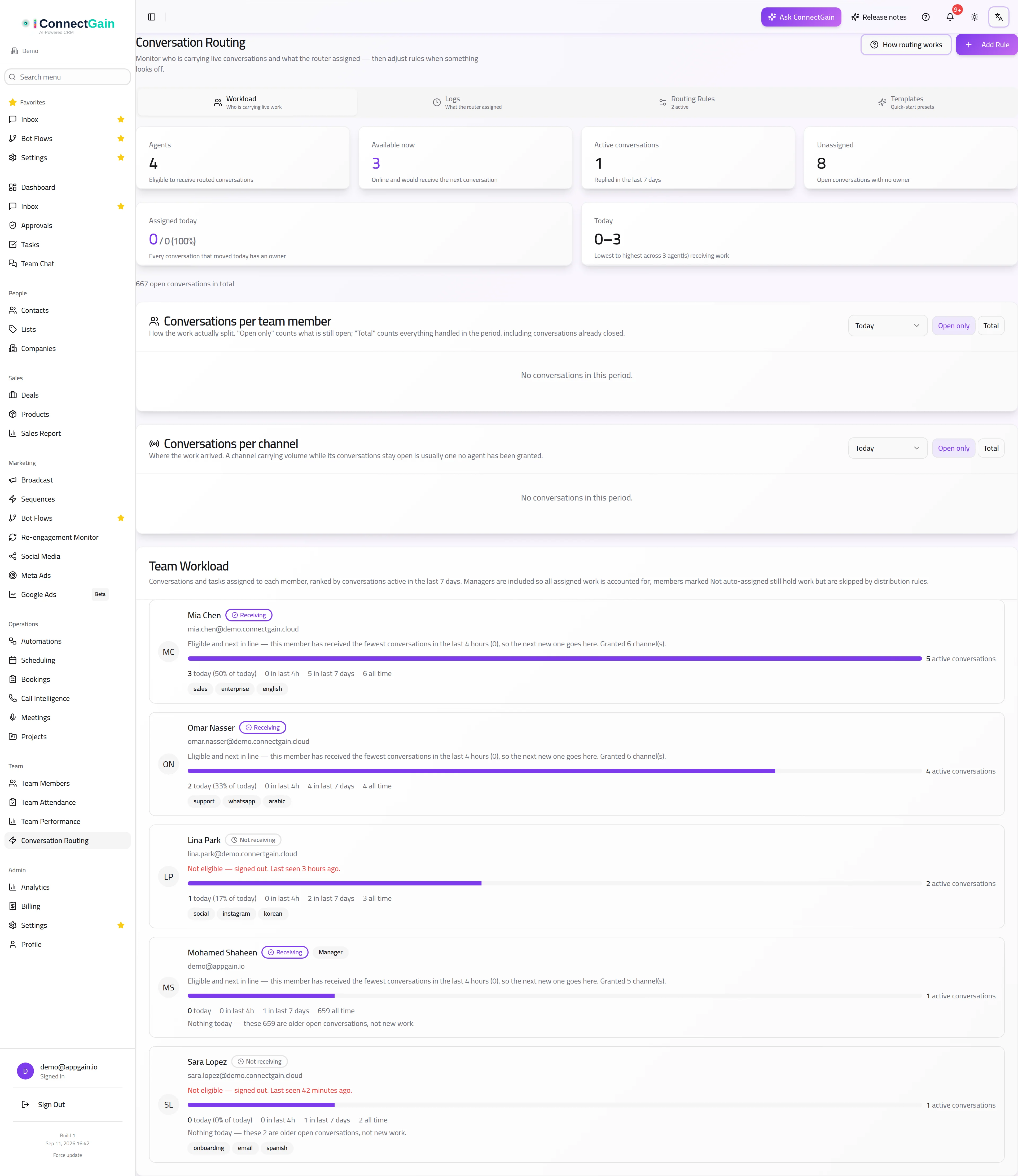
 How incoming conversations are shared out between agents.
This page explains exactly how that choice is made — in plain language, with the settings that change it and the situations where the outcome surprises people.
On this page:
- The short version
- Step 1: Who is allowed to receive conversations
- Step 2: Who counts as available right now
- Step 3: How the winner is chosen
- When nobody is available
- Safety nets for unanswered chats
- Settings reference
- Worked examples
- Troubleshooting
- What routing never does
The short version
Every new conversation goes through the same three questions, in this order:
- Who is allowed to receive conversations? — role, permission, and channel access build the eligible pool.
- Who counts as available right now? — either online status or configured working hours, depending on your workspace setting.
- Which of them gets it? — either the person who has received the fewest conversations in the last 4 hours (Balanced) or the next person in the rotation (Round-robin).
If the answer to question 2 is "nobody", the conversation stays unassigned — visible to the whole team — until someone picks it up or a background job hands it out.
Step 1: Who is allowed to receive conversations
A team member has to clear all four of these gates to be in the pool. If any one fails, they are skipped silently — no error, they simply never come up in the rotation.
| Gate | Rule | Where to change it |
|---|---|---|
| Active account | The member must be active, not suspended or removed. | Settings → Team |
| Auto-assign permission | "Can be auto-assigned conversations" must be on. | Settings → Team → Permissions |
| Role | Owners, Admins and Project Managers are excluded by default. | See note below |
| Channel access | If channel restrictions are in use for a channel, only members granted that channel can receive its conversations. | Settings → Team → Channel access |
About the role exclusion
Owners, Admins and Project Managers are treated as managers, not front-line agents. They are left out of automatic distribution on purpose, so that routing does not hand customer chats to people who are managing rather than replying.
If you do want a manager in the rotation, switch their "Can be auto-assigned conversations" permission explicitly on. For a manager, leaving the toggle at its default is not enough — it has to be a deliberate on.
About channel access
Channel access works on an all-or-nothing basis, and the switch is workspace-wide, not per channel:
- If nobody in the workspace has been given explicit channel access, everyone is eligible for every channel. This is the default, and it is what most workspaces run.
- As soon as anyone is given explicit access to any channel, the whole workspace becomes restricted: from that point on, a member can only receive conversations on channels they have been explicitly granted.
This catches people out, and it is worth reading twice. Granting one agent access to your WhatsApp line does not just add them — it switches the entire workspace into restricted mode, and every other member now needs explicit grants for every channel they should cover.
Access can be granted two ways, and they add up:
- Directly to a member, in Settings → Team → the member → Channel access.
- To a team, in Settings → Teams. Everyone in that team inherits access to the team's channels.
Either is enough. A member with a team grant can receive conversations on that channel without needing a personal one.
Step 2: Who counts as available right now
Your workspace uses one of two definitions of "available". This is the single biggest source of confusion, because the two behave very differently.
The switch is Settings → Organization → "Use working hours instead of online status".
Mode A — Online status (default, toggle off)
Someone is available if either is true:
- their app has checked in within the last 5 minutes, or
- they are signed in and their app has checked in within the last 2 hours.
The two-hour allowance is deliberate. It keeps an agent who is on a call, or whose laptop briefly slept, in the rotation instead of dropping them the moment their connection stutters.
Mode B — Working hours (toggle on)
Availability is decided only by the working hours configured for each member. Online status is ignored completely.
- An agent inside their shift receives conversations even when fully logged out.
- An agent outside their shift receives nothing, even while online and actively working.
- An agent with no working hours configured is never auto-assigned anything.
- If nobody is inside a shift right now, new conversations are left unassigned for the whole team to see.
Important: that third point is the one that catches teams out. In this mode, a member with an empty schedule is invisible to routing — not a fallback, not a last resort. Before switching this mode on, confirm every agent who should receive chats has hours saved.
Working hours are set per member from the team list, and each block carries its own timezone — so a Cairo agent and a Dubai agent can both be scheduled correctly in one workspace. Overnight shifts that cross midnight (for example 22:00–06:00) are supported and are counted as one continuous block.
Step 3: How the winner is chosen
Once the pool is known, one of two methods picks the owner. Your workspace runs one method for all channels.
Balanced (default)
The conversation goes to whoever has received the fewest conversations in the last 4 hours, counting everything they were given whether it is still open or already closed. If two people are level, the one with the lighter open desk wins; if they are still level, it is random.
Why share and not open chats. Balancing on how many chats you currently have open sounds right and behaves badly, because closing a chat removes it from the count. The agent who clears her queue is instantly the "emptiest" again and is handed the next run of conversations — so the faster you work, the more you get, and a colleague who lets chats sit is passed over. One team saw a single agent take 61% of a day's conversations this way. Counting what each person has been given cannot be moved by closing, so the share evens out no matter how differently people work.
Why 4 hours. Long enough that a burst evens out, short enough that an agent coming back from a break is not paying for the morning. The window slides continuously, so shares decay on their own and the team converges rather than lurching.
Closing your chats still pays off. When two agents are level on recent share — which happens constantly — the one carrying fewer open chats from the last 7 days wins the tie. So an agent who clears her queue genuinely does take more than a colleague sitting on a heavier load, she just cannot run away with the whole day. Measured over 200 conversations across five agents, the fastest closer receives about 45 against an even split of 40, and the slowest about 39.
An agent who has had more than the others receives nothing new until the rest catch up. That is the balancing working, not a block on that person — the Team Workload screen says so on their row, with both numbers.
Presence is preferred, not required. Balanced sends the conversation to an agent who is present (see Step 2) whenever one is, and only falls back to the lightest-loaded absent agent when nobody is. A conversation is never left unassigned just because the team is offline — it waits in someone's inbox for their next login. The safety nets described below still do not run in Balanced mode.
Balanced suits teams where everyone works the same hours and coverage is not in question.
Round-robin
Conversations are dealt out in strict rotation — first to A, then B, then C, then back to A — using a pointer that persists across restarts, so the rotation never resets and nobody gets skipped.
Round-robin only rotates among available agents (as defined by your mode in Step 2). Someone unavailable is passed over, and the rotation continues to the next person; they are not owed a make-up turn when they return.
Round-robin is the mode to use when fairness of count matters — a sales floor where each conversation is a lead, for example. It is also the only mode where the safety nets below are active.
Switching between Balanced and Round-robin is not currently a self-service setting. Ask ConnectGain support to change it for your workspace.
When nobody is available
If no eligible member is available, the conversation is saved unassigned. This is intentional, not a failure.
An unassigned conversation is visible to the entire team in the inbox, so anyone can open and answer it. An assigned one may not be — if your workspace restricts conversation visibility to the assignee, a chat sitting with an absent agent is invisible to everyone else. Leaving it unassigned is the safer outcome.
In practice this is rarer than it used to be, because both routes now fall back rather than give up:
- The built-in rule tries three tiers in order — agents active in the last 5 minutes, then agents online within the last 2 hours, then any eligible agent at all. A conversation only goes unassigned when the pool is empty at every tier, which normally means nobody is eligible rather than nobody being online.
- Assignment rules you create yourself do the same widening: first someone both scheduled and present, then anyone online, and finally any eligible agent, online or not. The reasoning is that a conversation queued to an offline agent who will see it at next login still beats one nobody owns.
So if conversations are going unassigned, the cause is almost always the eligible pool being empty — everyone excluded as a manager, or by the auto-assign permission, or by channel access — rather than everyone being offline.
Two routing engines
It is worth knowing there are two, because they are configured in different places and an org can run both:
| Built-in assignment | Assignment rules | |
|---|---|---|
| Runs | Always, on every new conversation | Only when you create a rule |
| Configured in | Workspace-wide setting (contact support to change) | Conversation Routing page, per rule |
| Method | One method for the whole workspace | Each rule picks its own |
If a conversation was assigned in a way the workspace-wide setting does not explain, check the Conversation Routing page — a rule was probably responsible.
Rules can also distribute by required skills (only agents tagged with the skills you name) or to a specific agent, and an individual rule can be allowed to include managers even though the built-in rule excludes them.
One more way a conversation gets an owner
If an unassigned conversation is answered by a team member — including a reply sent from the WhatsApp or Messenger app directly rather than through ConnectGain — that person becomes its owner. This is intentional: whoever picked it up owns it. It can look like routing behaving oddly if you are not expecting it.
Safety nets for unanswered chats
These two background jobs run every 5 minutes, and only in Round-robin workspaces.
Auto-reassign unanswered conversations
If the assigned agent has not replied to the customer within your threshold, the conversation moves to someone else.
Set the threshold at Settings → Organization → "Auto-reassign unanswered conversations". Default is 15 minutes; 0 turns it off.
The rules that keep this from becoming a merry-go-round:
- Only genuinely unanswered chats move. The customer's last message must be newer than the agent's last reply. If the agent has already answered, the clock is not running.
- The clock starts at the later of the customer's message or the moment the conversation was assigned. A newly received conversation gets the full threshold before it can move again.
- Never back to someone who already missed it. An agent who let the same conversation time out will not be given it again for 24 hours.
- Maximum 3 moves per conversation per 24 hours. After that it stays put — endless bouncing helps nobody.
- Only recent chats. Conversations whose last message is more than 24 hours old are left alone.
- Managers are skipped. A conversation assigned to an Owner, Admin or Project Manager is never auto-reassigned.
If nobody else is available and the current owner is also absent, the conversation is returned to the unassigned queue so the whole team can see it. If the owner is present but simply slow, it stays with them and the threshold is checked again on the next run.
Every move is recorded and shows up as a missed conversation for the agent who let it lapse, in the agent performance report.
Unassigned queue sweeper
This catches conversations that arrived when nobody was around.
Every 5 minutes it looks for unassigned, still-open conversations from the last 7 days and hands them to an available agent — fewest received in the last 4 hours first, the same fair-share measure Balanced uses.
The sweeper is deliberately stricter than normal routing: it only assigns to someone whose app has checked in within the last 5 minutes, i.e. a person genuinely at their desk right now. Backlog should go to someone who will actually see it, not to someone who merely has a shift on paper.
It also waits 60 minutes before re-dealing anything the reassignment job just returned to the queue, so the two jobs cannot pass a conversation back and forth.
If nobody is at their desk, the backlog is left alone and tried again on the next run.
Escalation on a routing rule
Separately from the two jobs above, each rule under Conversation Routing → Rules can have its own escalation (shown on the rule as, for example, "Escalation: 13h 20m · Unanswered conversation"). This one works in any distribution mode.
- It checks every 5 minutes for conversations that are assigned to an agent and where the customer's last message has waited longer than the time you set.
- Depending on the rule, it reassigns the conversation, notifies Owners and Admins, or both.
- Each conversation is escalated at most 3 times by the same rule.
- Unassigned conversations are not escalated. If a channel has no agent with access to it, its conversations are never assigned, so this escalation never reaches them. Give agents access to the channel under Step 1.
Every escalation appears in Conversation Routing → Logs with the trigger escalation, and in the conversation's automation activity in the inbox. Escalations from before 28 October 2026 have been added to the Logs too.
Settings reference
| Setting | Where | Default | What it controls |
|---|---|---|---|
| Distribution method | Contact support | Balanced | Round-robin rotation vs fair-share balancing (fewest received in 4h) |
| Use working hours instead of online status | Settings → Organization | Off | Whether availability means "scheduled" or "online" |
| Auto-reassign unanswered conversations | Settings → Organization | 15 min | Minutes before an unanswered chat moves on (0 = off) |
| Can be auto-assigned conversations | Settings → Team → Permissions | On for agents, off for managers | Whether a member is in the pool at all |
| Working hours | Settings → Team → member availability | None | Per-member schedule, with its own timezone |
| Channel access | Settings → Team | Unrestricted | Which channels a member can receive |
| Restrict conversations to assignee | Settings → Organization | Off | Whether agents see only their own conversations |
Worked examples
A sales team on strict shifts
Setup: Round-robin · Working hours mode on · Auto-reassign at 15 minutes · Every agent has hours saved.
A customer messages at 10:00. Three agents are scheduled 09:00–17:00; one is scheduled 17:00–01:00. The chat rotates among the three morning agents only — the evening agent is not offered it, online or not.
The agent who receives it is in a meeting and does not reply. At 10:15 the conversation moves to the next available morning agent and the first agent is recorded a missed conversation. If that second agent also lets it lapse, it moves once more — and then stops, because three moves in 24 hours is the limit.
A support team where everyone works the same hours
Setup: Balanced · Online status mode · Default settings.
Conversations flow to whoever has received the fewest in the last 4 hours, so the day's work splits evenly however fast each person closes. A fast closer is not punished with more work, and a colleague sitting on old threads is not passed over. Agents who are signed in are preferred, but no reassignment job runs — this configuration relies on the team being at their desks.
If coverage is patchy, switch to Round-robin so the safety nets become active.
A team split across two countries
Setup: Round-robin · Working hours mode on.
Cairo agents are scheduled 09:00–17:00 Africa/Cairo; Dubai agents 09:00–17:00 Asia/Dubai. Because each block carries its own timezone, both are evaluated correctly against real local time, and the handover between the two groups happens on its own as the clocks move.
After hours
Setup: Round-robin · Working hours mode on.
A message arrives at 02:00 with nobody scheduled. No agent is available, so the conversation is saved unassigned and is visible to everyone. When the morning shift signs in, the sweeper deals the overnight backlog out — oldest first, to whoever has received the fewest recently — within 5 minutes of them being at their desks.
Troubleshooting
One agent is receiving everything. In Balanced mode, distribution follows each person's share of the last 4 hours, so a run to one agent normally means the others have already had theirs and it is that agent's turn to catch up — it evens out within the window. If it persists, check the routing screen: a colleague showing as no channel access or auto-assign off is not in the pool at all, and with a small pool one person legitimately gets everything. In Round-robin mode, check availability: the rotation skips anyone unavailable, so if only one person qualifies, they get all of it.
Before 5 September 2026 this had a third cause, now fixed: Balanced counted every open conversation an agent had ever been given, including threads untouched for months. The agent with the lowest lifetime count received an unbroken run of conversations until her backlog reached the next agent's — hundreds of chats, hours at a time — and clearing your queue only deepened the hole. If your workspace was affected, nothing needs changing; the 7-day window applies from that date.
An agent is receiving nothing. Work down the four gates in Step 1 — active account, auto-assign permission, role, channel access — then check availability. In Working hours mode, the most common cause by far is no working hours saved for that member, which removes them from routing entirely.
Nobody is receiving anything and chats sit unassigned. In Working hours mode this means no shift covers the current time. Confirm the schedules are saved with the right timezone, and remember that a member with no hours at all is never a fallback.
Conversations bounce between agents. That is the reassignment job doing its work, but the limits are firm: an agent who missed a conversation will not see it again for 24 hours, and no conversation moves more than three times in 24 hours. If it feels too aggressive, raise the threshold from 15 minutes; set it to 0 to switch it off.
A conversation moved even though the agent replied. It should not. The job only moves conversations where the customer's message is newer than the agent's last reply. Check whether the reply went out on a different channel or from outside ConnectGain, which would leave no outbound message on the conversation.
A routing rule's escalation never fires. Check that the conversations are assigned: escalation only looks at conversations with an owner, so a channel nobody has access to is never escalated. Then check whether the conversation has already been escalated 3 times by that rule. Every escalation that did run is listed in Logs with the trigger escalation.
Reassignment and the sweeper do nothing at all. Both only run in Round-robin workspaces. In Balanced mode there is no reassignment and no sweeper.
What routing never does
- It never overrides a person. Automatic assignment only fills an empty owner. A conversation you assign by hand stays where you put it.
- It never double-assigns. Assignment is claimed atomically, so two rules or two incoming messages arriving at the same moment cannot produce two different owners.
- It never reassigns on every new message. Once a conversation has an owner, later messages in the same thread go to that owner. The only thing that moves it is the reassignment job, a manual change, or an automation rule you configured.
- It never routes to a manager by accident. Owners, Admins and Project Managers stay out of the pool unless their permission is explicitly turned on.
- It never assigns deals. Routing sets who owns the conversation and the customer, and stops there. Who owns a deal is decided only by the rules you build in Automations — see Share Out New Deals Across the Sales Team. If you are used to deals following whoever picked up the chat, they no longer do.
Related pages
- Team management — roles, permissions, availability and channel access
- Settings — organization settings, including the routing toggles
- Automations — rules that can assign conversations, and the only place deal distribution is configured
- Inbox — working with assigned and unassigned conversations
ConnectGain — omnichannel inbox, CRM & automation for WhatsApp, Messenger, Instagram, Telegram and more. Open the app · Docs home