Product Catalog
Overview
The Product Catalog (/products) is the list of things you sell. It is what
the chatbot shows customers when they ask what is available, and what an order
is built from — so a product that is missing here cannot be quoted or sold in a
conversation.
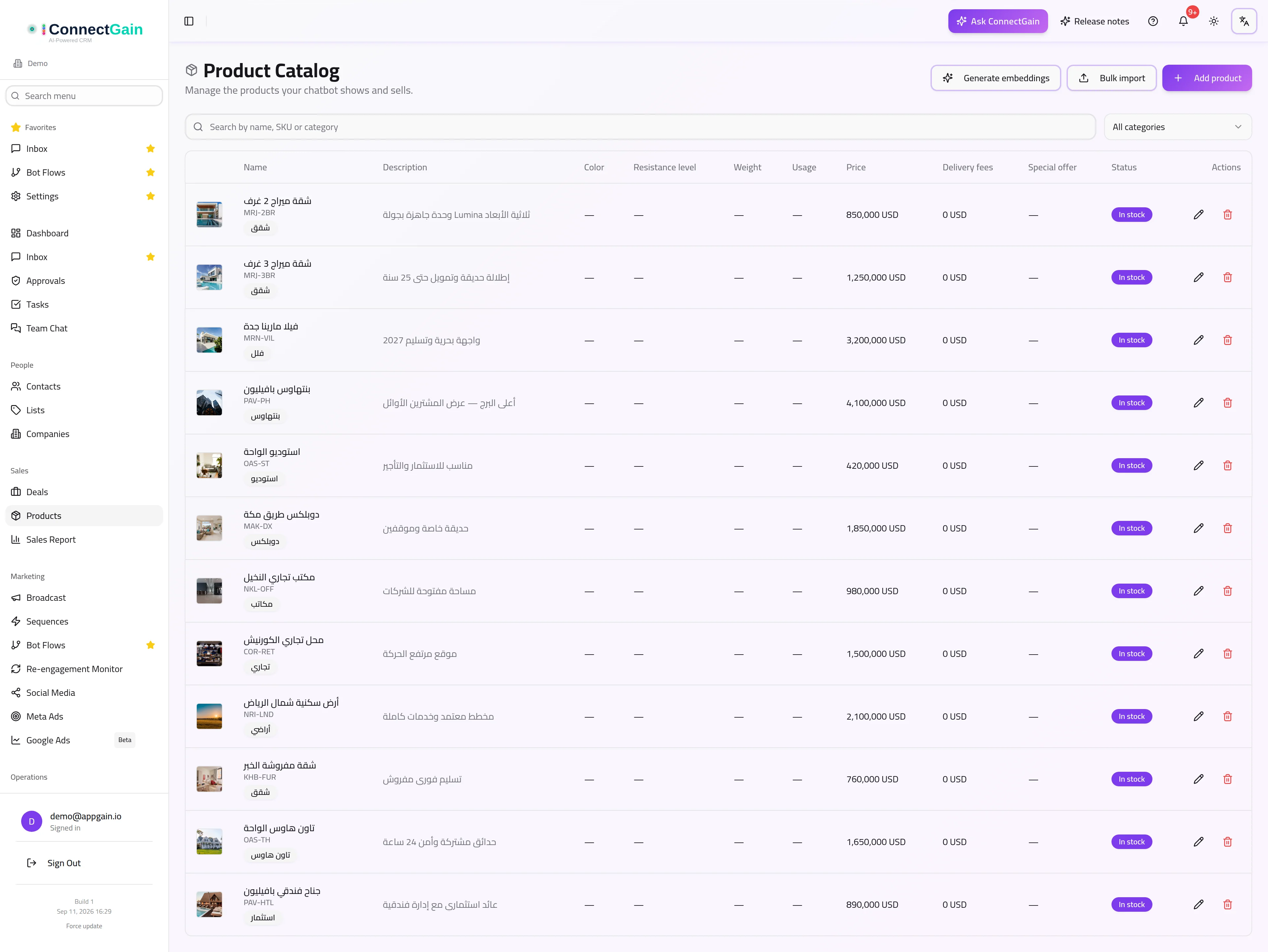
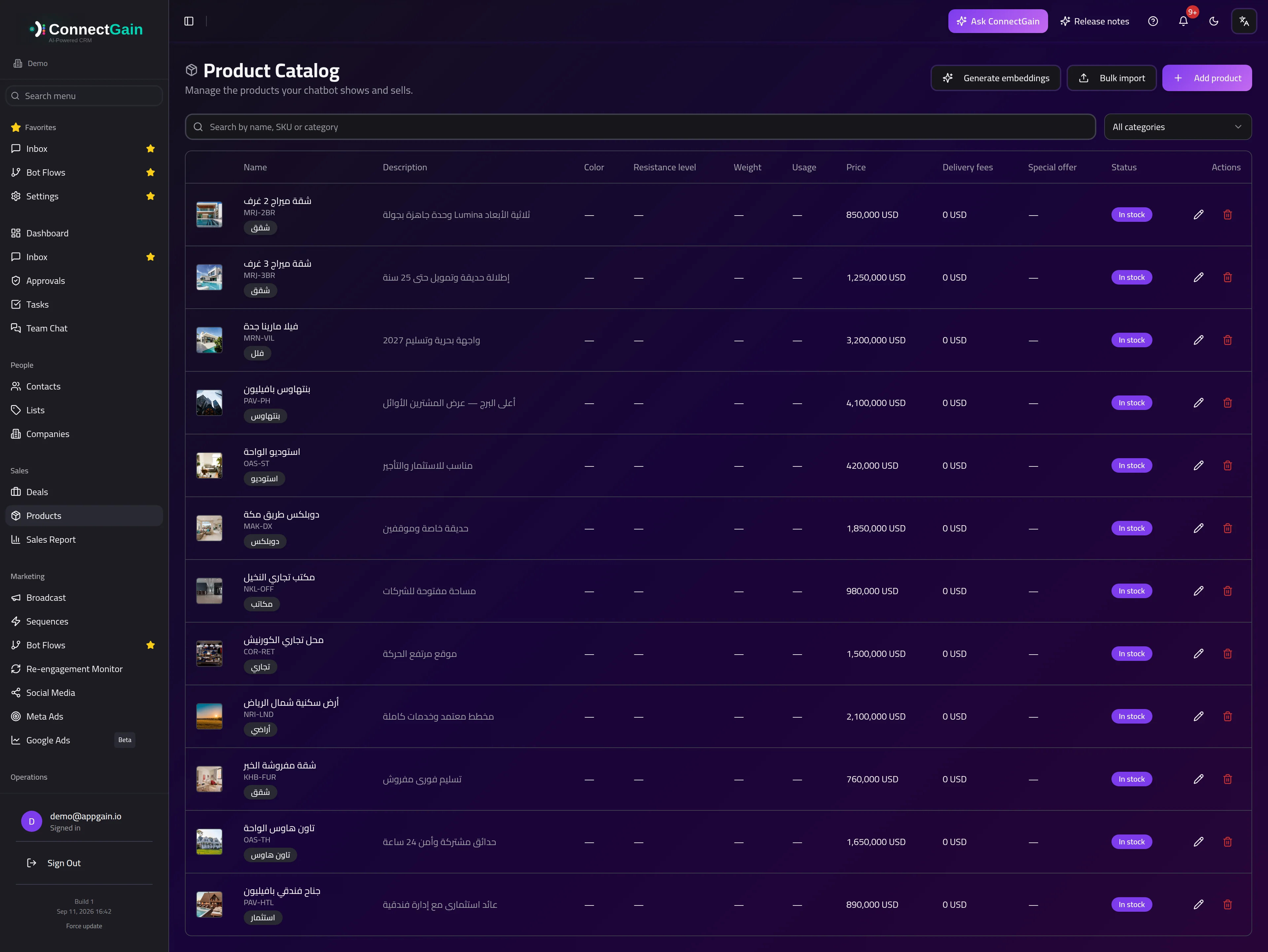 The product catalog, with pricing, stock and channel availability.
What a product holds
| Field | Notes |
|---|---|
| Name | Required. What the customer sees. |
| SKU | Your own reference code. Optional. |
| Category | Groups products so the bot can offer a shortlist. |
| Price and Currency | The quoted price. |
| Delivery fees | Added on top of the price. Optional. |
| Description | Specs, details and highlights the bot can quote back. |
| Stock quantity | Drives the In stock / Out of stock badge. |
| Product image | JPG, PNG, WEBP or GIF, up to 10 MB. |
| Active | Inactive products stay in your catalog but are hidden from the chatbot. |
| Channel availability | Limits a product to particular connected channels. |
Active vs out of stock
These are different, and the difference matters in a conversation:
- Out of stock is a temporary state of a product the bot still knows about, so it can say the item exists but is unavailable.
- Inactive removes the product from the bot's view entirely — use it for discontinued lines, or for items you are still preparing.
Channel availability
Leave the channel selection empty and the product is offered everywhere. Select specific channels and it is offered only there — useful when a price or a range is particular to one storefront or one Facebook page.
Adding products
One at a time — Add product, fill the form, save.
In bulk — the bulk import dialog takes a CSV. Download the template first: it lists the exact columns expected, and the import reports any rows it could not read rather than silently skipping them.
Bulk import is the faster route when you are setting up, or when prices change across a whole range.
How the chatbot uses the catalog
Products feed the shopping parts of a bot flow: listing what is available, answering questions about a specific item, and assembling an order. Keep the description useful and specific — it is the text the assistant draws on when a customer asks something you did not anticipate.
See Bot Flows for building the conversation around the catalog.
Related
- Bot Flows — the conversations that sell from this catalog
- Deals — turning an interested customer into a tracked opportunity
- Contacts — who you are selling to
ConnectGain — omnichannel inbox, CRM & automation for WhatsApp, Messenger, Instagram, Telegram and more. Open the app · Docs home