Team Chat
Overview
Team Chat (/team-chat) is where your team talks to each other. It sits beside
the customer inbox but is entirely separate from it: nothing written here is
ever visible to a customer, and nothing here is attached to a customer
conversation.
Use it for the running commentary a shift needs — who is covering what, a question about a price, a heads-up that a caller is about to be transferred.
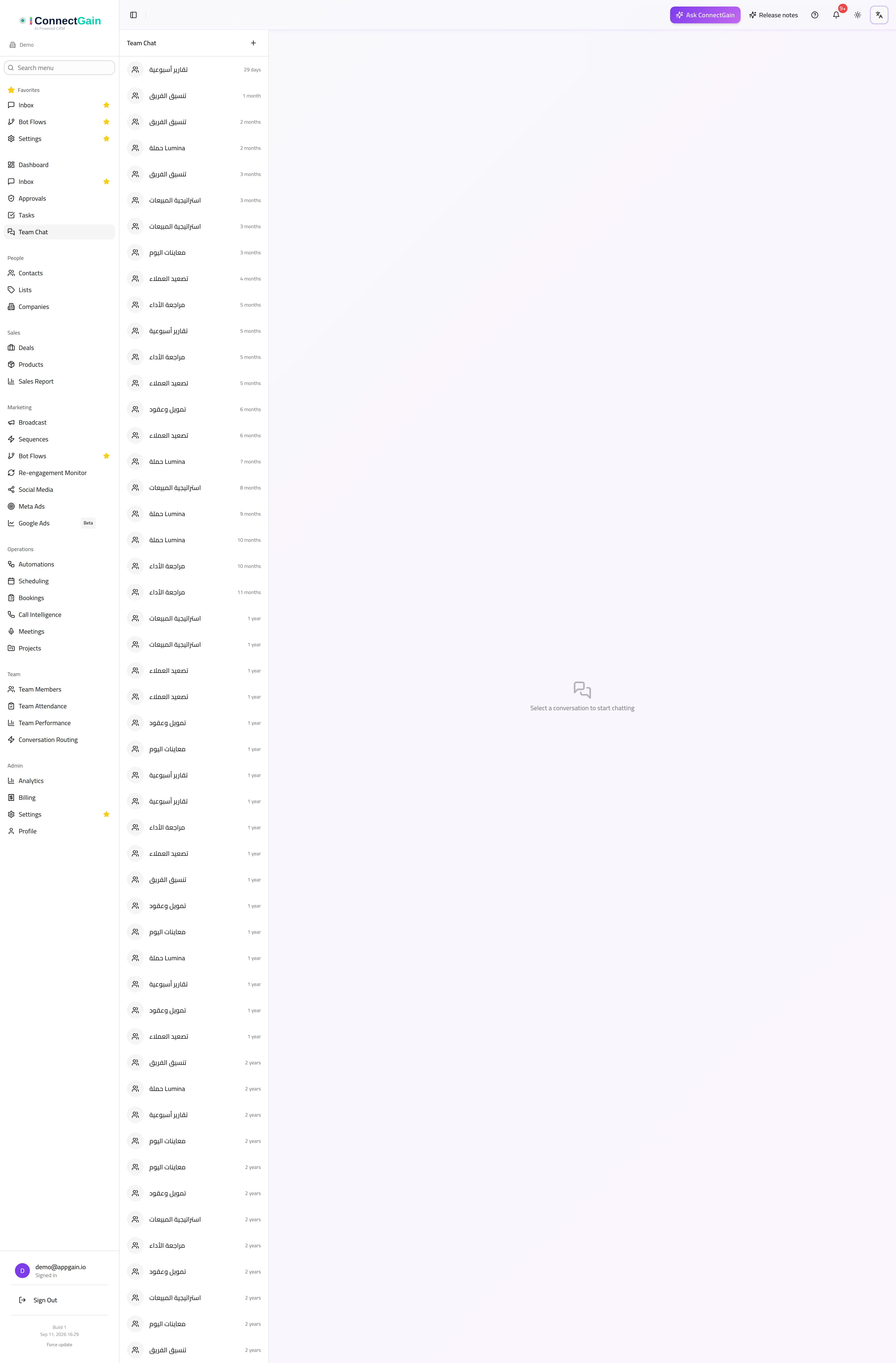
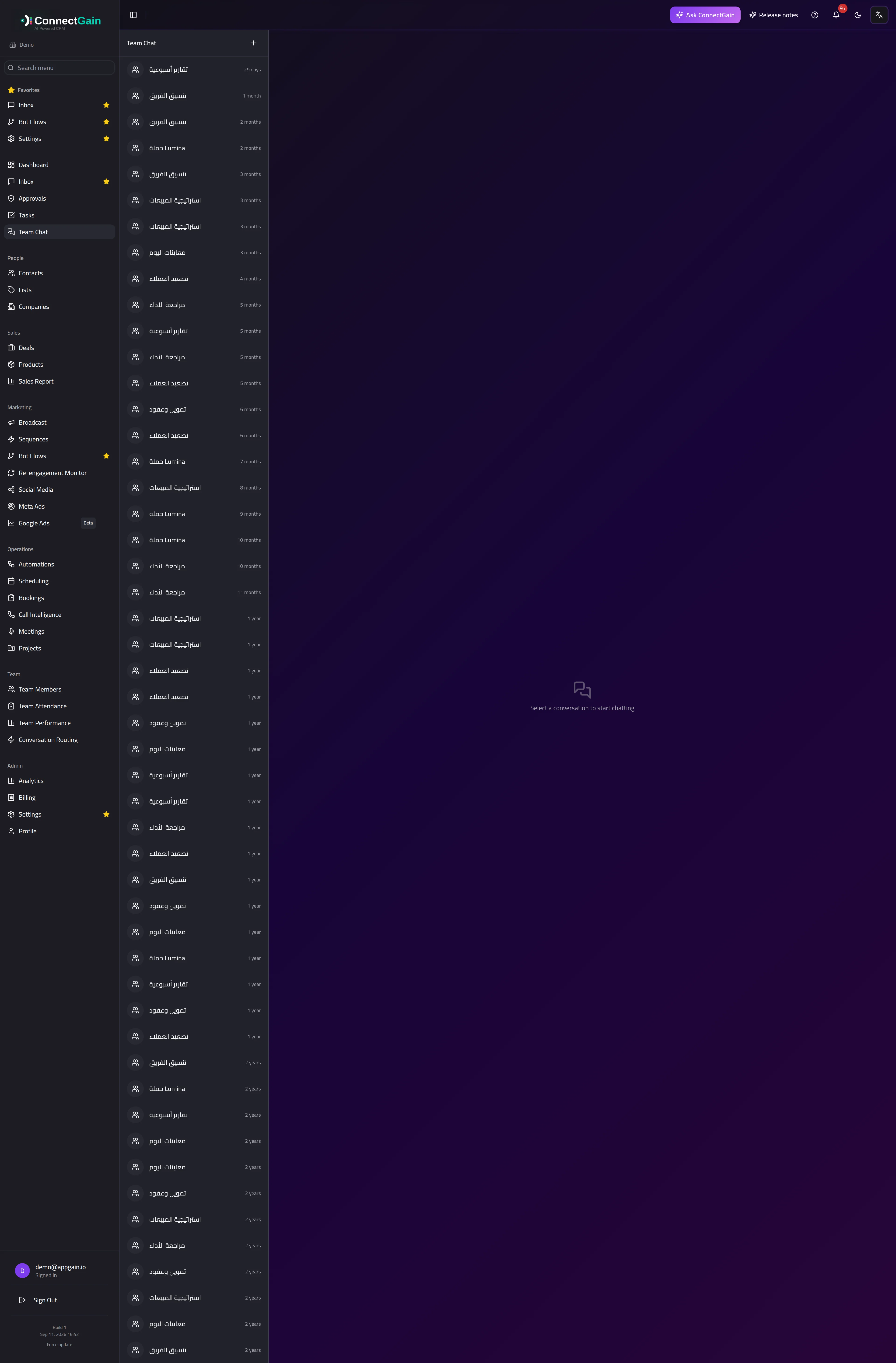 Team Chat: internal direct messages and group conversations.
Which plans include Team Chat
Team Chat is included with the Pro and Enterprise plans — nothing to buy or switch on. On Starter and Plus it is a separate add-on: until your workspace has it, the Team Chat entry is not shown in the sidebar.
Direct messages and groups
New chat starts either kind:
- Direct message — a private one-to-one thread with a colleague. Search for them by name.
- Group — a named conversation with several people, for a shift, a team or a piece of work.
Groups show their member count in the header, and open into Group settings for managing the conversation.
Managing a group
From Group settings you can:
- Rename the group. Only the person who created it, plus owners and admins, can do this — everyone else sees the name as read-only.
- Add members from your team. Anyone already in the group is filtered out of the picker.
- Remove a member.
- Leave the group yourself. Leaving stops further messages reaching you and ends your access to the conversation's history, so it is worth being sure.
Choosing what history a new member sees
When you add members you also choose how much of the group's past they can read:
- Don't include chat history (the default) — they see only messages sent after they were added.
- Include history from a date range — enter a number of days ("last 30 days") or pick a start date; they see messages from then onward.
- Include all chat history — they see everything in the group.
The choice applies only to the people you add at that moment; existing members are not affected. It is enforced on the server, so messages outside the window are not returned to that member by the app, the mobile app or the API. The window is fixed when the member is added — to change it, remove and re-add them.
Messages
Messages can be edited or deleted after sending. An edited message is marked as edited rather than changed silently, and a deleted one leaves a placeholder so a thread does not quietly rearrange itself around a gap.
Long conversations open on the newest messages. Choose Load earlier messages at the top of a thread to read further back.
Tasks in chat
When a colleague creates a task and assigns it to you, Team Chat posts a message in your direct chat with them: "Task created by Ann: Call the client", followed by the priority, due date and the start of the description. It appears as sent by the person who created the task, and notifies you like any other chat message.
Nothing is posted when you assign a task to yourself, when a task is created automatically, or when your organization does not have Team Chat.
Notifications
When a colleague writes in a chat you belong to, you are notified in the bell and, if you use the ConnectGain mobile app, by a push notification on your phone.
- A group notification is titled with the group's name and reads "Sender: message", so you can tell who wrote it. A direct message is titled with the sender's name.
- Tapping the push opens that chat. A phone running an app version that predates Team Chat links opens the app's home screen instead.
- You are only pushed for the workspace your app is currently switched to.
- Turn push off for yourself under Profile → Notifications → Mobile Push Notifications. Turning off message notifications there silences Team Chat too.
- A chat you are looking at is marked read as new messages arrive. If the tab is in the background, new messages stay unread until you come back to it.
Team Chat vs the inbox
| Team Chat | Inbox | |
|---|---|---|
| Who is in the conversation | your colleagues | your customers |
| Where the messages come from | inside ConnectGain | WhatsApp, Messenger, Instagram, Telegram, TikTok, email |
| Visible to the customer | never | yes |
| Attached to a contact record | no | yes |
If you want to leave a note about a customer that your team can see, that belongs on the conversation or the contact in the inbox — not here.
Related
- Inbox — customer conversations
- Team management — who is on the team and what they can reach
ConnectGain — omnichannel inbox, CRM & automation for WhatsApp, Messenger, Instagram, Telegram and more. Open the app · Docs home