Telegram Channels
Overview
ConnectGain connects to Telegram in two ways: as a bot (the default) and as a personal account. This guide covers what most teams want from Telegram — sending automated, scheduled messages to everyone in a Telegram channel — and is equally clear about the things Telegram does not permit, because several of them are commonly assumed to be possible.
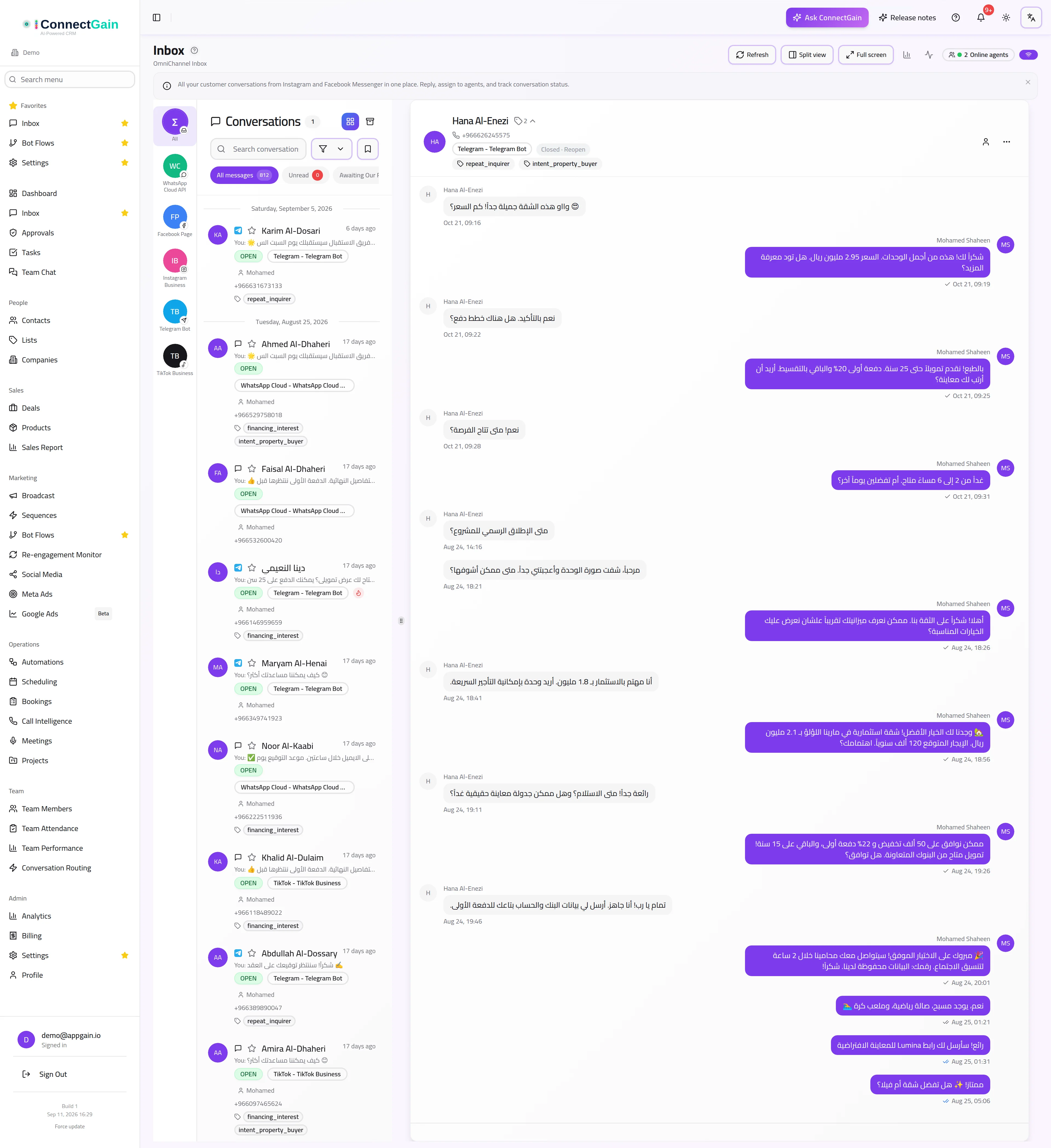
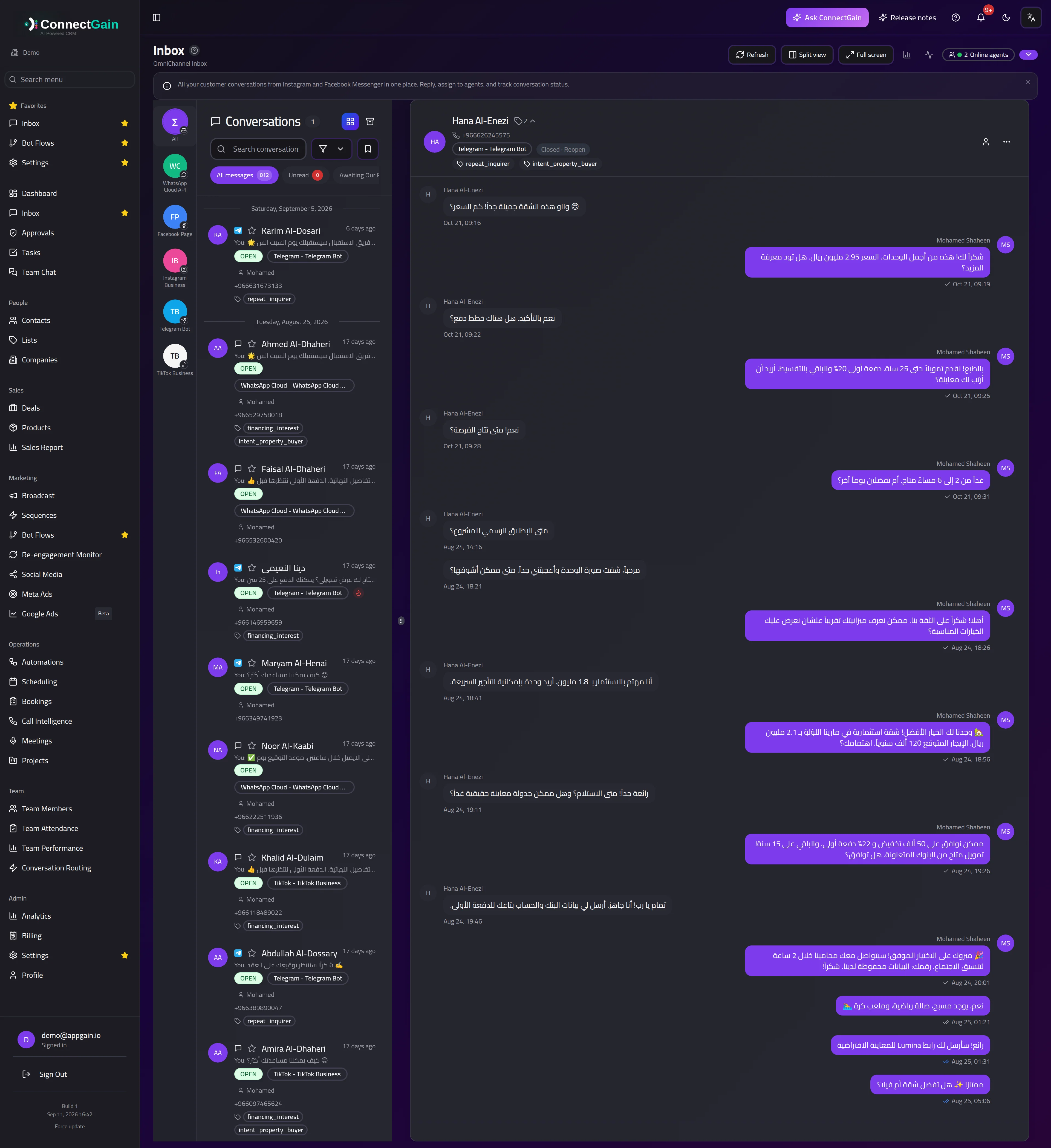 A Telegram conversation in the shared inbox.
Status: beta. Channel publishing and the invite-link flow work and are safe to use, but they are new and the picture is not complete: automated drip sequences cannot yet send on Telegram, so follow-ups to people who opt in are sent by hand from the Inbox for now. Expect the setup steps below to stay stable; expect more to be added around them.
The short version:
- You can post to a Telegram channel automatically, on a schedule. Every member of that channel receives it.
- You can reply to anyone who messaged your bot, and message them again later.
- You cannot read the member list of a channel you don't administer.
- You cannot have a bot send the first message to someone. They must contact it first.
Where to find it:
- Social Planner (/social-media) — write and schedule the posts.
- Settings → Channels — connect the bot, choose which channel to publish to, and copy your invite link.
Scheduled posts are checked about once a minute, so they go out close to the time you set.
Contents: What Telegram Allows · Setting Up Publishing · Scheduling Posts · Reaching Members Privately · Held Posts · How-To Guide · Use Cases · Test Cases
1. What Telegram Allows
This section exists because the limits below are enforced by Telegram's own servers. They are not ConnectGain settings, and no configuration, integration, or plan changes them.
You can
| Action | Notes |
|---|---|
| Post to a channel you administer | Every member receives it. This is the mechanism for "message all members". |
| Schedule those posts in advance | Handled by the Social Planner and published within about a minute of the scheduled time. |
| Reply to anyone who messaged your bot | Once someone has contacted the bot, you can message them freely from the Inbox. |
| Message someone who tapped your invite link | Tapping a t.me link counts as contacting the bot. See section 4. |
You cannot
| Action | Why |
|---|---|
| Export or view a channel's member list | Telegram answers with CHAT_ADMIN_REQUIRED unless you are an administrator of that channel. For channels you don't run, the member list is simply not readable. |
| Have a bot message someone first | Telegram bots cannot open a conversation. The person must message the bot before it can reply. |
| Send private messages to channel members one by one | This would require both of the above. It is not possible with a bot, and attempting it from a personal account gets that account restricted (see below). |
A warning about personal accounts. ConnectGain also supports connecting a personal Telegram account, which is used to sync your existing chats into the Inbox. That account can technically send messages to people who never contacted you — and Telegram aggressively restricts accounts that do. The usual result is a spam block: the account can no longer message anyone who is not already a contact. Because the same account also powers your Inbox sync, a restriction takes your live Telegram conversations down with it. Do not use a personal account for outreach to strangers.
Message size limits
| Post type | Limit |
|---|---|
| Text-only post | 4,096 characters |
| Caption on an image or video | 1,024 characters |
A post longer than the caption limit is sent as the media first, followed by the remaining text as a separate message.
2. Setting Up Channel Publishing
Publishing needs three things. All three are required — missing any one of them means posts are held rather than sent.
- A connected Telegram bot. Add it under Settings → Channels → Add Channel → Telegram, in Bot mode. You'll need a bot token from @BotFather.
- The bot must be an administrator of your channel, with permission to post messages. In Telegram, open your channel → Administrators → Add Administrator → choose your bot → make sure Post Messages is on. This is the step teams most often miss.
- The channel must be named in ConnectGain. Open Settings → Channels, edit your Telegram channel, and fill in Channel publishing with either:
- the channel's public
@username(for example@mycompanynews), or - its numeric chat id (for example
-1001234567890) for a private channel.
Press Verify after entering it. ConnectGain checks the channel with Telegram and tells you specifically which of the three requirements is not met, rather than failing generically later.
3. Scheduling Posts to Your Channel
- Go to /social-media and open the Composer tab.
- Write your post and pick a content type — Telegram supports text, image, carousel, video and link posts.
- Under Publish to, tick Telegram.
- Choose a date and time, or publish immediately.
- Save.
Scheduled posts are checked about once a minute, so they go out close to their scheduled time.
If Telegram isn't fully set up yet, the Composer shows a short checklist at this point telling you exactly what's outstanding, with a link to the settings that fix it.
4. Reaching Members Privately
Since you cannot message channel members directly, the supported route is to let them start the conversation — which takes one tap.
Telegram supports deep links of the form https://t.me/yourbot?start=campaign_name. When someone taps that link, Telegram opens a chat with your bot and sends a hidden /start campaign_name message. From that moment on, your bot may message that person directly, with no limits and no risk of being flagged.
To set this up:
- Open Settings → Channels, edit your Telegram channel, and find Invite link for direct messages.
- Optionally enter a campaign name (letters, numbers,
-and_, up to 64 characters). This is recorded against each person who joins through the link, so you can tell which post brought them in. - Copy the link and include it in your channel posts — for example, "Tap here to get our price list in a private message."
What ConnectGain records when someone taps it:
- A contact is created (or matched) for that person, keyed on their Telegram id.
- Their marketing opt-in is set to yes.
- The campaign name is stored on the contact, along with the date they opted in.
- An entry is written to the contact's activity log.
Anyone can opt out at any time by sending /stop to the bot. That sets their marketing opt-in back to no, which every automated send in ConnectGain checks before sending. Opt-outs are never silently reversed — re-importing a contact or flipping other settings will not resubscribe someone who opted out.
Note: Automated drip sequences do not yet support Telegram as a step channel. Today, follow-up messages to people who opted in are sent by hand from the Inbox. Their consent and its source are already being recorded, so they will be ready to enrol when Telegram sequences ship.
5. When a Post Stays "Scheduled"
If a Telegram post sits at scheduled past its time and nothing appears to happen, this is deliberate rather than a failure.
When a post's target channel isn't ready to publish, ConnectGain holds the post instead of failing it — it stays scheduled, and the reason is shown on the post in the Library and Calendar. As soon as you finish the setup, the next check publishes it. Nothing is lost and you don't need to recreate the post.
The usual reasons are:
| Message on the post | Fix |
|---|---|
| Missing a target chat | Fill in Channel publishing in the channel's settings (see section 2). |
| Missing a bot token | Reconnect the Telegram channel with a valid bot token. |
If a post is genuinely failed rather than held, the error from Telegram is shown on the post directly. The most common one is that the bot was removed as an administrator of the channel.
6. Chats You Can Read but Not Reply To
Some Telegram chats deliver every message into your Inbox while refusing anything you send back. There are three ways this happens:
| Situation | What Telegram does |
|---|---|
| A group set to "only admins can send messages", where your bot or personal account is not an admin | Reads fine, refuses every reply |
| A broadcast channel you follow but do not administer | Only admins can post to a channel |
| Your account has been restricted or removed from the chat | Reads whatever is already synced, sends nothing |
In all three cases the thread opens with the message box replaced by a short note explaining why, instead of letting you type a reply that Telegram would reject. The messages themselves stay fully readable and searchable, and the thread keeps receiving new ones.
To start replying, make the account an administrator of the chat in Telegram (or, for a group, have an admin turn ordinary member sending back on). ConnectGain re-checks the chat as new messages arrive in it, at most once every six hours, so the message box returns on its own — in the thread you already have open — without anyone reconnecting the channel.
ConnectGain only hides the message box when Telegram has told it outright that sending is not allowed. A chat it has not been able to check keeps its message box, so a network problem never makes a working conversation look read-only.
7. Groups and Channels Do Not Count as Work
A Telegram group, supergroup or broadcast channel is a room with many participants, not a conversation with a customer. Nobody owes it a reply, and most of them cannot be replied to at all (see section 6). A single busy room can carry thousands of messages, so counting them made the inbox look permanently behind.
These rooms are therefore left out of the counters that mean "there is work waiting for you":
| Counter | Rooms included? |
|---|---|
| Unread | No |
| Pending our response | No |
| Pending client response | No |
| Unassigned | No |
| Unread badge on the channel in the sidebar | No |
| All, and the conversation list itself | Yes — nothing is hidden |
Each counter and the list it opens agree: clicking Unassigned shows the same threads the badge counted, with no rooms among them.
The threads stay exactly where they were. You can open them, read them, search them, and they keep receiving new messages — they simply stop claiming to be tasks. Each one is marked Group, Supergroup or Channel next to its name in the list so you can tell it from a person at a glance.
Notifications
You are not notified about messages in a room — no browser notification, no phone notification, and nothing in the in-app bell:
| Thread | Notifies you? |
|---|---|
| Private one-to-one chat | Yes, as before |
| Group or supergroup | No — even if you are able to post in it |
| Broadcast channel you administer | Yes |
| Broadcast channel you only follow | No |
Groups and supergroups are silent whether or not you can post, because a room full of people is not a message addressed to you. Channels you run still notify, since a message there may need your reply.
Messages in these threads are never emailed either — ConnectGain only emails task notifications, never message notifications, on any channel.
Rooms are also never assigned to an agent. Auto-assignment skips them, so a room never lands in somebody's queue as their responsibility.
Rooms are also never escalated. If your workspace reassigns a conversation whose agent has not replied in time, that timer is not started for a room — there is no reply for it to be waiting on, so a room is never passed from agent to agent.
Private one-to-one Telegram chats are unaffected and count like any other channel.
AI summaries and interest scoring
For the same reason, ConnectGain does not run its AI summary or interest scoring on a room automatically. Both describe one customer's intent, which a forty-person room does not have, and both are billed to your own AI provider key.
You can still generate a summary for a room on demand from the thread whenever it is useful — only the automatic runs stop. Private Telegram chats are summarised and scored automatically as before.
How-To Guide
A. Send the same announcement to everyone in your channel
- Complete the setup in section 2.
- Compose the post, tick Telegram, and schedule it.
- Every member of the channel receives it as a normal channel post.
B. Turn channel readers into direct-message subscribers
- Generate an invite link with a campaign name (section 4).
- Post an offer in your channel with that link — something worth a tap, such as a price list, a discount code, or a booking link.
- As people tap it, contacts appear with their opt-in recorded and the campaign name attached.
- Reply to them from the Inbox.
C. Find out which campaign a subscriber came from
Open the contact and check their custom fields — the campaign name from the invite link they used is stored there, along with the date they opted in. Their activity log shows the opt-in event too.
Use Cases
- Product announcements — schedule a week of channel posts in advance from the Planner.
- Lead capture from a public channel — post a lead magnet with an invite link, then follow up privately with everyone who taps it.
- Support broadcast — announce an incident or maintenance window to every channel member at once.
- Attribution — run two posts with different campaign names in the same link and compare how many subscribers each brought in.
Test Cases
| # | Scenario | Expected result |
|---|---|---|
| 1 | Schedule a Telegram post with no target channel set | Post stays scheduled with a reason shown; nothing is sent. |
| 2 | Set a valid target channel where the bot is an admin, then press Verify | Confirmation naming the channel. |
| 3 | Enter a channel where the bot is not an admin | Error stating the bot is not an administrator, with the fix. |
| 4 | Enter a channel that does not exist | Error stating the chat could not be found. |
| 5 | Complete setup and wait for a held post's next check | The post publishes without being recreated. |
| 6 | Tap t.me/yourbot?start=demo from another Telegram account |
A contact is created, opted in, with demo recorded as the source. |
| 7 | Send /stop to the bot |
The contact's marketing opt-in is set to no. |
| 8 | Post a text longer than 1,024 characters with an image | Image sends with a truncated caption, remainder follows as a second message. |
Related Documentation
Document Version: 1.0.0 Last Updated: September 2026
More screens
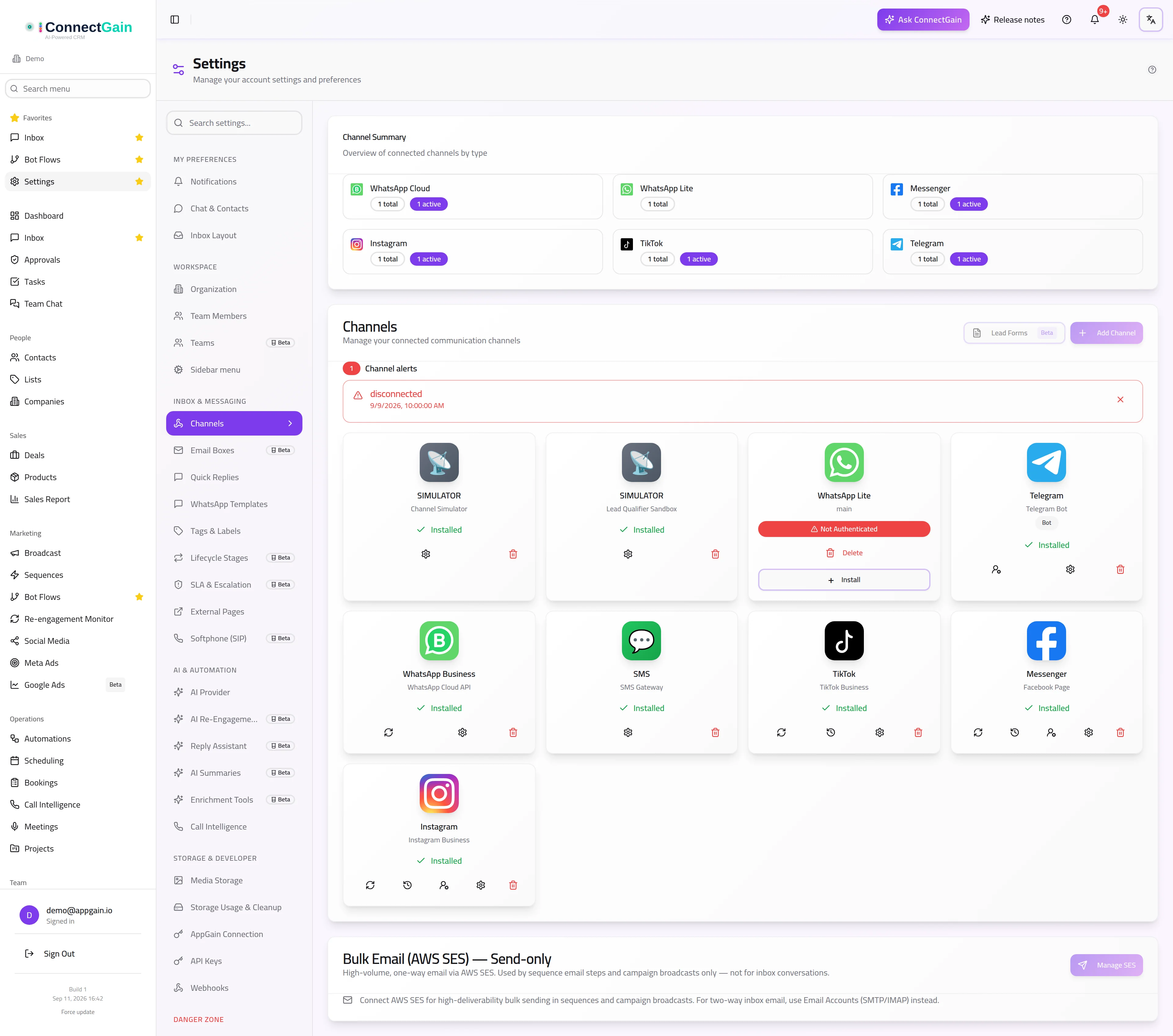
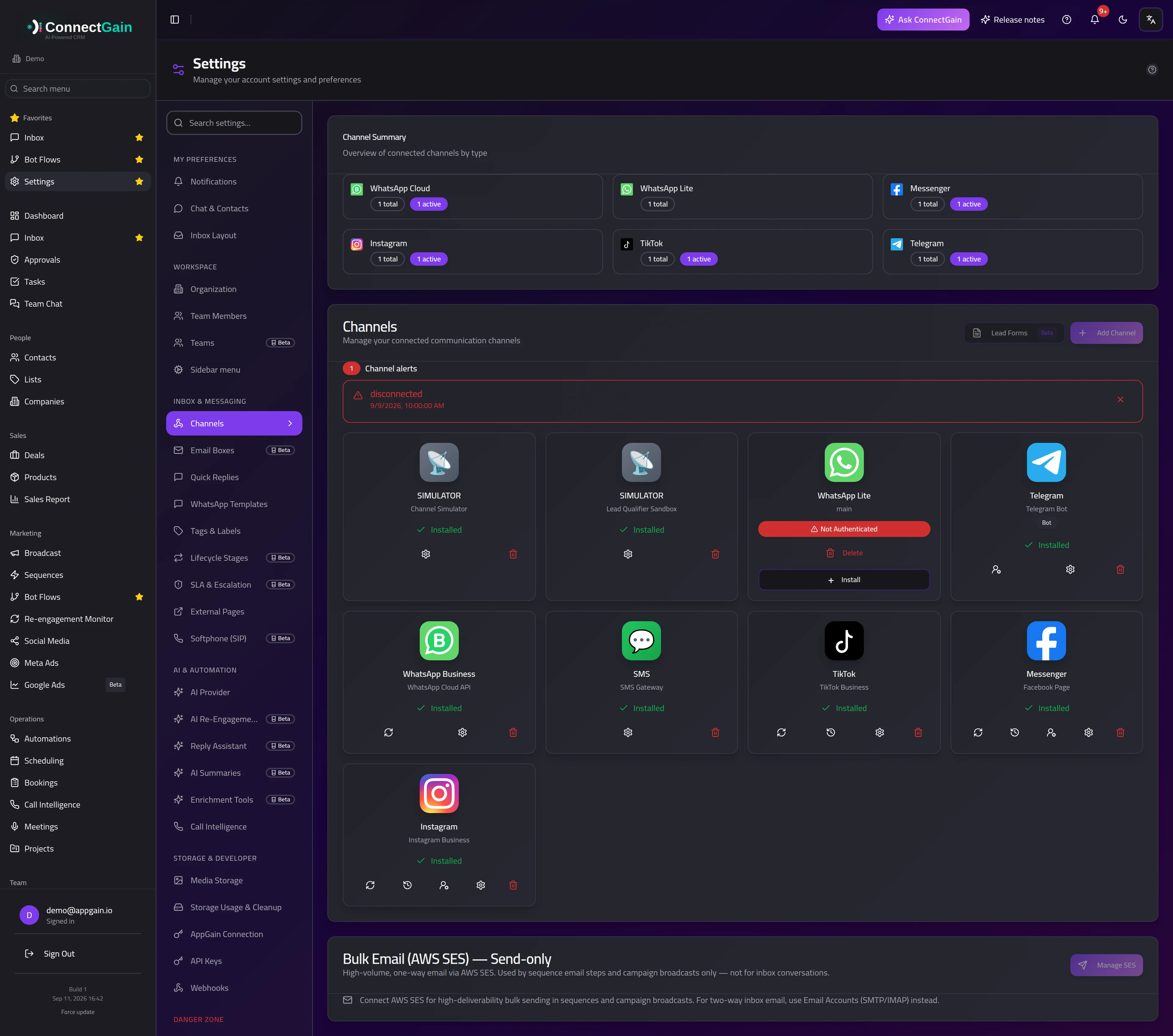 Connected channels, Telegram among them.
ConnectGain — omnichannel inbox, CRM & automation for WhatsApp, Messenger, Instagram, Telegram and more. Open the app · Docs home